StandBy Mode Lyrics: How to Set Up Lyrical on Your iPhone
Want to see lyrics on your iPhone's StandBy Mode while charging? Here's how to set up Lyrical to display full-screen lyrics on your nightstand or desk with iOS 17 and later.
StandBy Mode Lyrics: How to Set Up Lyrical on Your iPhone
You can display lyrics on your iPhone's StandBy Mode using Lyrical's widget. When your iPhone charges horizontally on a stand, StandBy Mode shows a full-screen lyrics display perfect for nightstands, desks, and kitchen counters. It works with Apple Music and Spotify, updating in real-time as songs play.
That is the short answer. But if you have never used StandBy Mode or do not know how to add widgets, you need a step-by-step guide.
This walkthrough covers everything: enabling StandBy Mode, adding the Lyrical widget, and getting the most out of this feature.
What Most People Get Wrong About StandBy Mode
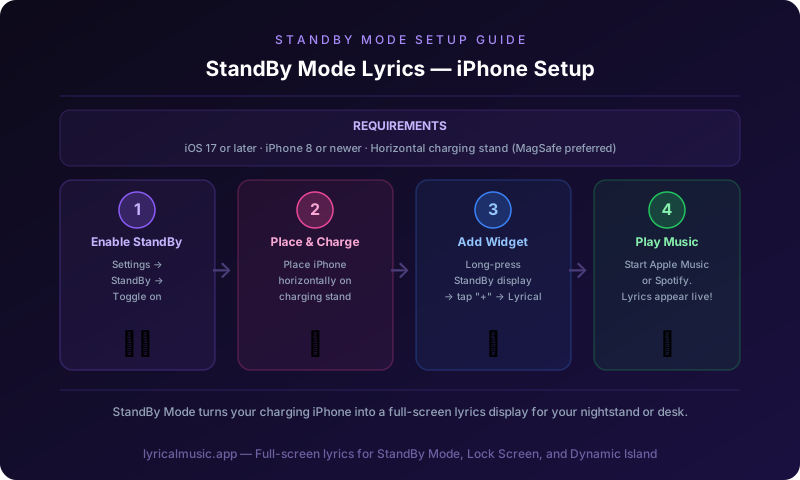
The biggest mistake is thinking StandBy Mode is just a clock. It is not. StandBy Mode transforms your charging iPhone into an information display. Clocks, calendars, photos, and now — with Lyrical — lyrics.
Another mistake is not having the right setup. StandBy Mode requires specific conditions: iOS 17 or later, horizontal charging position, and ideally a MagSafe or wireless charging stand. You cannot just plug in your cable and expect StandBy Mode to activate.
The third mistake is ignoring the customization options. StandBy Mode has multiple views you can swipe between. Lyrics do not have to replace your clock. They can coexist with other information.
What Is StandBy Mode (And Why Lyrics Work There)
StandBy Mode is an iOS feature that activates when your iPhone charges horizontally. Instead of showing a simple charging indicator, your iPhone becomes a smart display.
Here is the counterintuitive thing: StandBy Mode is perfect for lyrics because it is designed for glancing, not interacting. You are not actively using your phone. You are across the room, cooking, working, or falling asleep. The lyrics display passively, always visible, never requiring you to pick up your phone.
The emotional journey of StandBy Mode lyrics: at first you think it is a gimmick. Then you charge your phone by your bed and realize you can see lyrics without touching anything. Then you use it while cooking and sing along without getting food on your screen. Then you wonder how you lived without it.
Requirements for StandBy Mode Lyrics
iOS version: iOS 17 or later. Check in Settings > General > Software Update.
iPhone model: iPhone XS and later support StandBy Mode. Older models do not.
Charging position: Your iPhone must be horizontal (landscape) and charging. Vertical charging does not activate StandBy Mode.
Charging method: MagSafe, wireless charging, or cable all work. MagSafe stands work best because they hold the phone at the right angle.
Lyrical app: Download Lyrical from the App Store. The StandBy widget is included.
How to Set Up StandBy Mode
Step 1: Enable StandBy Mode
1. Open Settings
2. Scroll down to StandBy
3. Toggle StandBy to ON
4. Ensure Always On Display is enabled if you have an iPhone 14 Pro or 15 Pro
Step 2: Position your iPhone horizontally
Place your iPhone on its side while charging. A charging stand helps, but you can prop it against something.
Step 3: Wait for StandBy Mode to activate
After a few seconds, your iPhone screen changes to StandBy Mode. You will see a clock by default.
Step 4: Swipe to find the Lyrical widget
Swipe left or right to cycle through StandBy Mode views. Look for the Lyrical lyrics widget.
Step 5: Add Lyrical widget if not visible
If you do not see Lyrical:
1. Long press the StandBy Mode screen
2. Tap the plus (+) button to add widgets
3. Scroll down to Lyrical
4. Select the lyrics widget
5. Tap Add Widget
Step 6: Start playing music
Open Apple Music or Spotify. Play a song. Lyrical detects the music and displays lyrics on your StandBy Mode screen.
Customizing Your StandBy Mode Layout
StandBy Mode has three views you can swipe between:
Widgets view: Shows small widgets like weather, calendar, and now playing. Add Lyrical here for compact lyrics display.
Photos view: Cycles through your photo library. Not useful for lyrics.
Large clock view: Shows time prominently. Good for nightstands.
How to arrange:
1. Long press any StandBy Mode screen
2. Tap Customize
3. Swipe between views
4. Add, remove, or rearrange widgets
5. Place Lyrical where you want it
Best setups:
- Nightstand: Large clock + Lyrical widget
- Desk: Lyrical full screen or with calendar
- Kitchen: Lyrical with timer widget
Using StandBy Mode Lyrics Effectively
At your nightstand: Fall asleep to music with lyrics visible. No need to pick up your phone if you want to see the words.
At your desk: Work while glancing at lyrics. The passive display does not distract like an active phone screen.
In the kitchen: Cook and sing along without touching your phone with messy hands. Lyrics stay visible from across the room.
During parties: Place your iPhone where guests can see lyrics. Everyone sings along together.
While getting ready: Morning routine with music and visible lyrics. Sing in the mirror with confidence.
Troubleshooting StandBy Mode Lyrics
Problem: StandBy Mode does not activate
Solution: Check that your iPhone is horizontal and charging. Vertical charging does not work. Try a different charging method.
Problem: Lyrical widget does not appear
Solution: Long press the StandBy screen, tap the plus button, and manually add the Lyrical widget from the widget gallery.
Problem: Lyrics do not update
Solution: Ensure Lyrical has permission to access your music. Check Settings > Lyrical > Media & Apple Music.
Problem: Lyrics lag behind music
Solution: This is usually a network issue. Lyrical needs to download lyrics data. Try downloading lyrics for offline use in the Lyrical app.
Problem: StandBy Mode turns off too quickly
Solution: Go to Settings > Display & Brightness > Auto-Lock. Set to Never while charging, or ensure Always On Display is enabled for iPhone 14 Pro/15 Pro.
Problem: Widget is too small to read
Solution: Try different widget sizes. Lyrical offers multiple StandBy widget sizes. Choose the largest one for better visibility.
What Lyrical Does Differently
Most lyrics apps do not support StandBy Mode at all. They require you to keep your phone active and unlocked. Lyrical was built for StandBy Mode from the start.
Full-screen option: Lyrical can take over the entire StandBy Mode display with large, readable lyrics.
Real-time sync: Lyrics update automatically as songs change. No manual intervention needed.
Romanization support: Korean, Japanese, and Chinese lyrics show with phonetic spelling, even on the StandBy display.
Always visible: Unlike your phone's regular screen, StandBy Mode stays visible without you touching anything.
The specific thing Lyrical does: it turns your charging iPhone into a dedicated lyrics display. Not an app you check occasionally. A persistent, passive window into your music.
Common Questions About StandBy Mode Lyrics
Which iPhones support StandBy Mode?
iPhone XS, XR, and later models running iOS 17 or later. iPhone 14 Pro and 15 Pro have Always On Display for continuous visibility.
Does StandBy Mode work with cable charging?
Yes, but your iPhone must be horizontal. A charging stand helps maintain the right position. MagSafe stands work best.
Can I use StandBy Mode without charging?
No. StandBy Mode only activates when your iPhone is charging. It is designed as a charging feature.
Do lyrics work with both Apple Music and Spotify?
Yes. Lyrical detects music from either app and displays appropriate lyrics.
Does StandBy Mode drain battery?
Your iPhone is already charging, so battery drain is not an issue. The display uses minimal power.
Can I customize the lyrics font size?
Lyrical's StandBy widget uses system font sizes. Choose a larger widget size for bigger text. iOS settings for larger text also apply.
What if my favorite song does not have lyrics?
Lyrical pulls from community databases. Popular songs have lyrics quickly. Niche songs may take longer. You can request additions through the app.
Can I use StandBy Mode lyrics in the car?
Not really — StandBy Mode requires horizontal charging. For car lyrics, use Lyrical's CarPlay integration instead.
The Bottom Line
StandBy Mode lyrics turn your charging iPhone into a smart display for your music. Perfect for nightstands, desks, and kitchens. Lyrical makes it work with real-time sync, romanization support, and seamless iOS integration.
The 3am realization that you can see lyrics without touching your phone? That is the StandBy Mode experience. Set it up once. Enjoy it forever.
Try Lyrical Free
Lyrical shows real-time synced lyrics on StandBy Mode, Dynamic Island, Lock Screen, and CarPlay. Works with Apple Music and Spotify. Romanization for K-pop and anime included.
Download Lyrical and transform your charging iPhone into a lyrics display.
*Last updated: March 2026*